How to play
Setting up the game
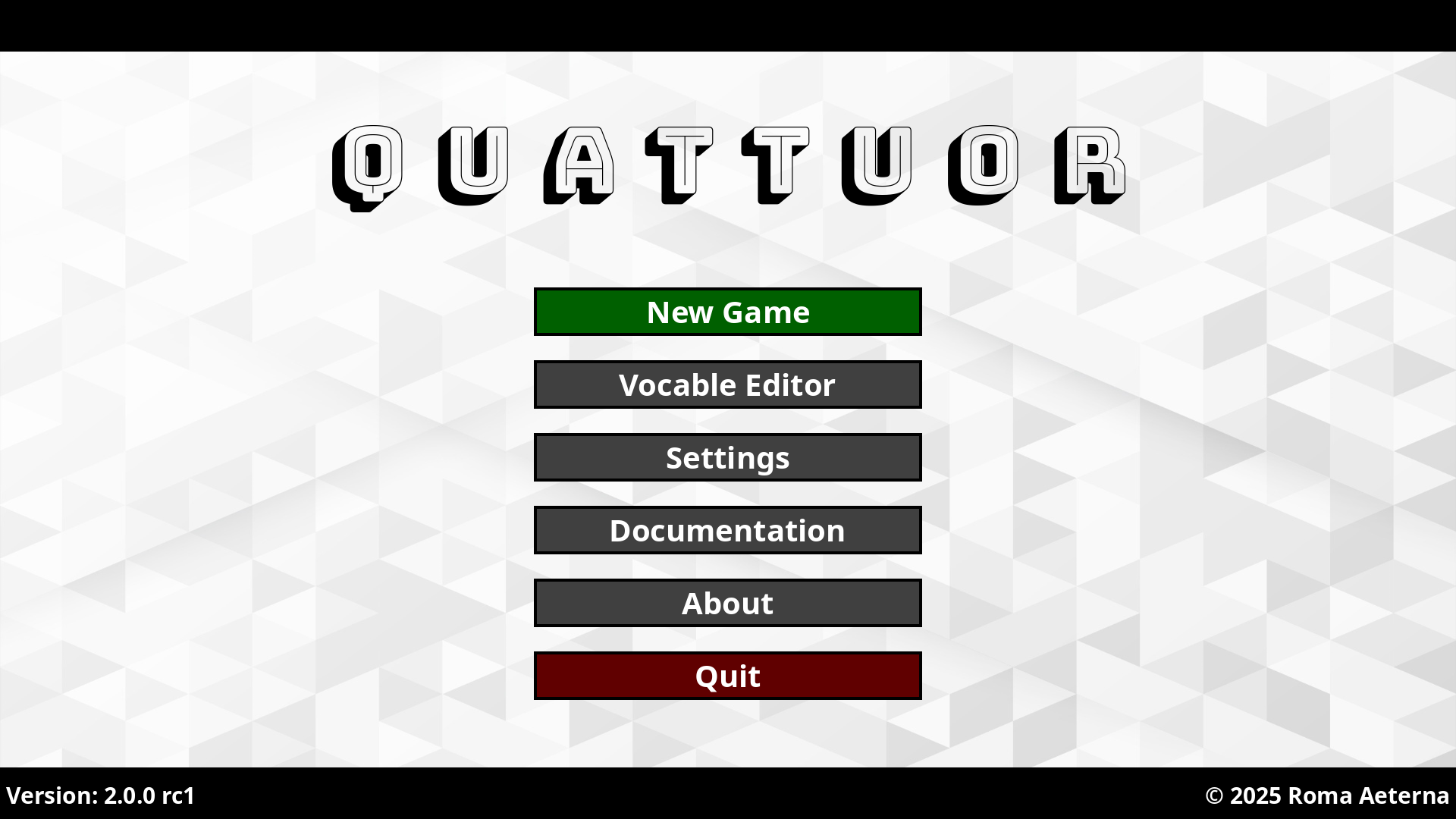
After starting the game you’ll see the main window of the application. Click the button “New Game” to open the setup screen.
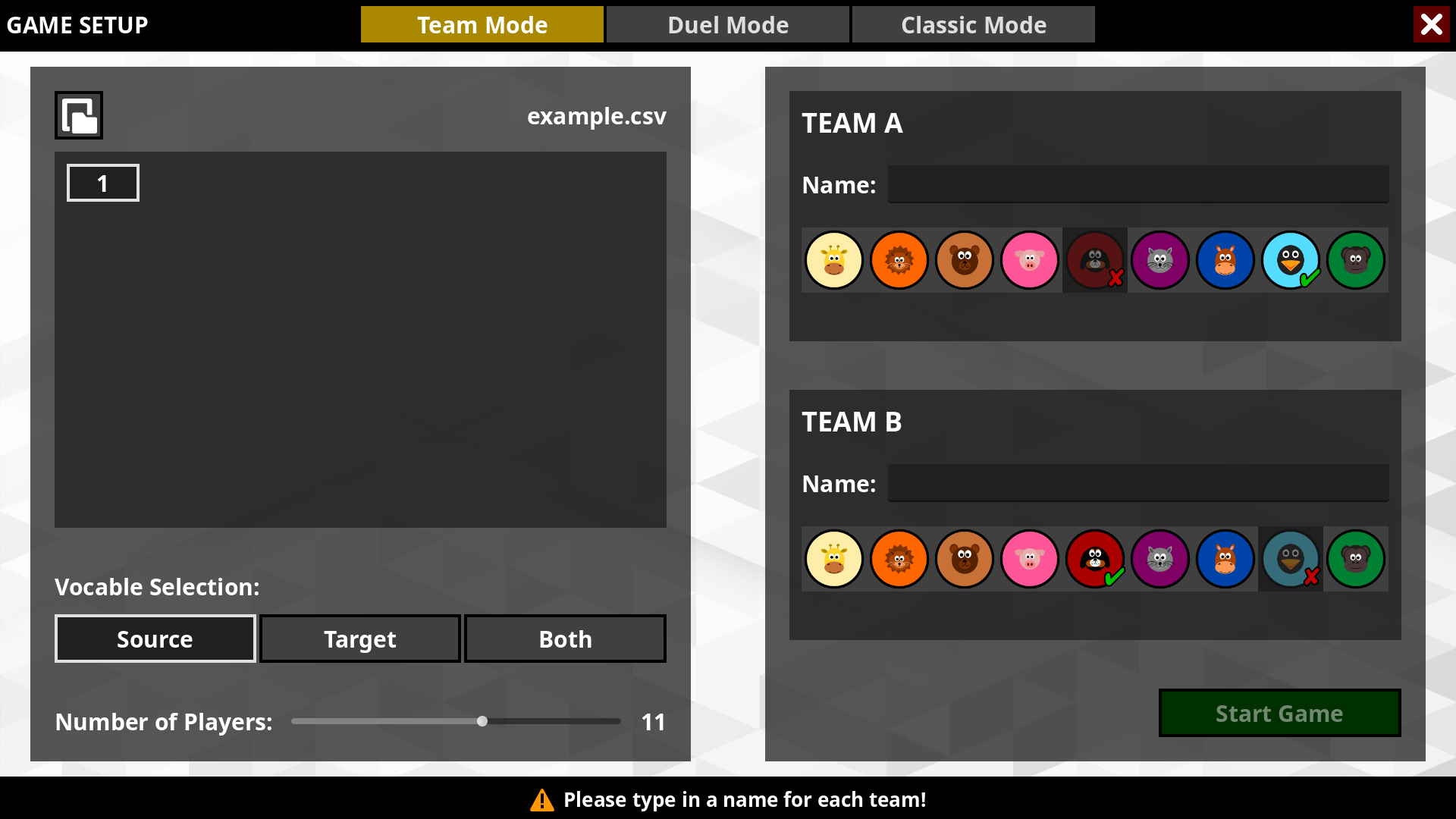
First click on the button at the top left and navigate to the file you want to open. Now you can choose the units you want your students to repeat. Furthermore you can select the kind of vocable selection and number of players each team consists of.
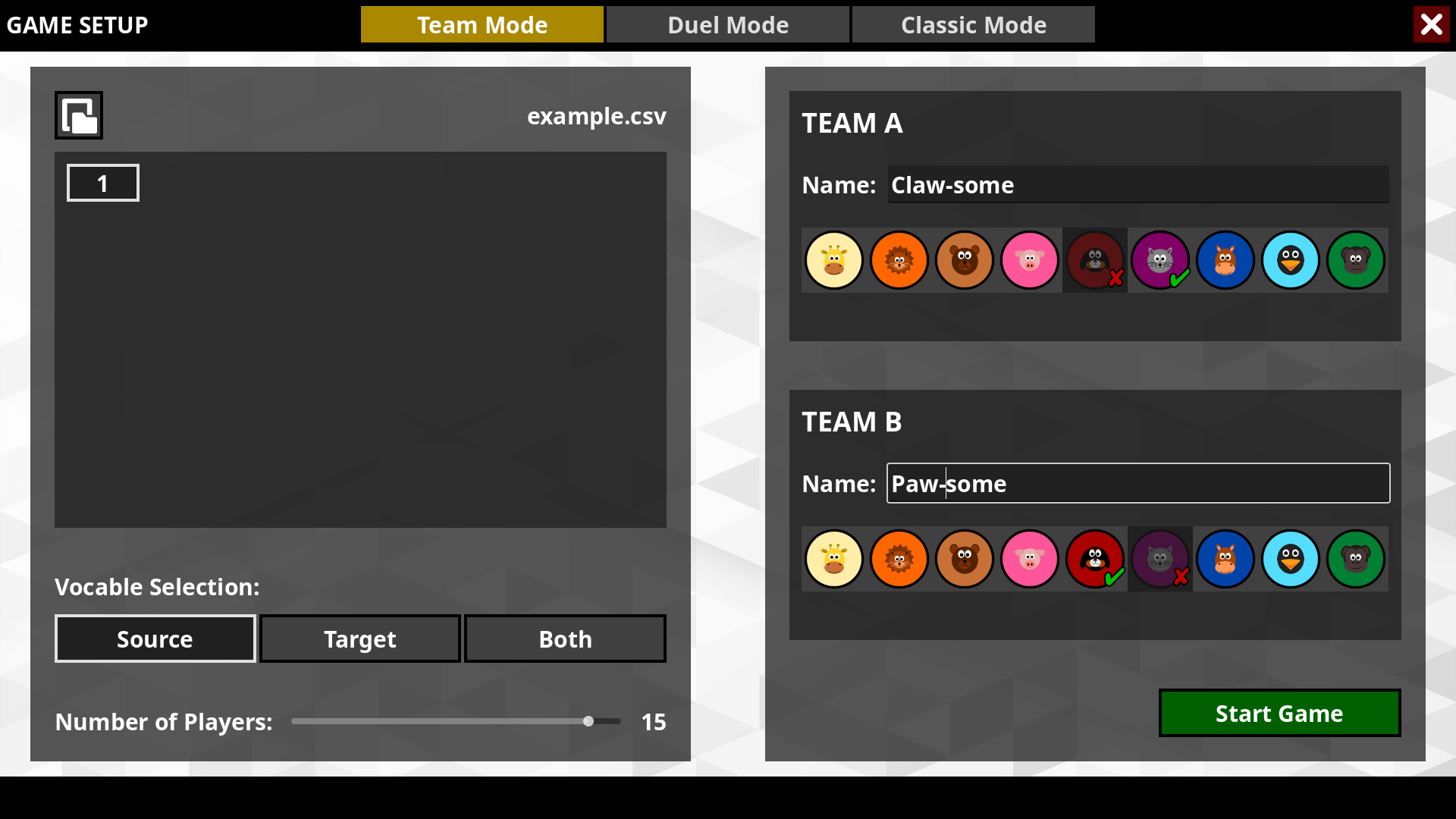
Next type in the name of the teams. If you like, you can change the token of each team. Finally press the button “Start Game”.
Playing the game
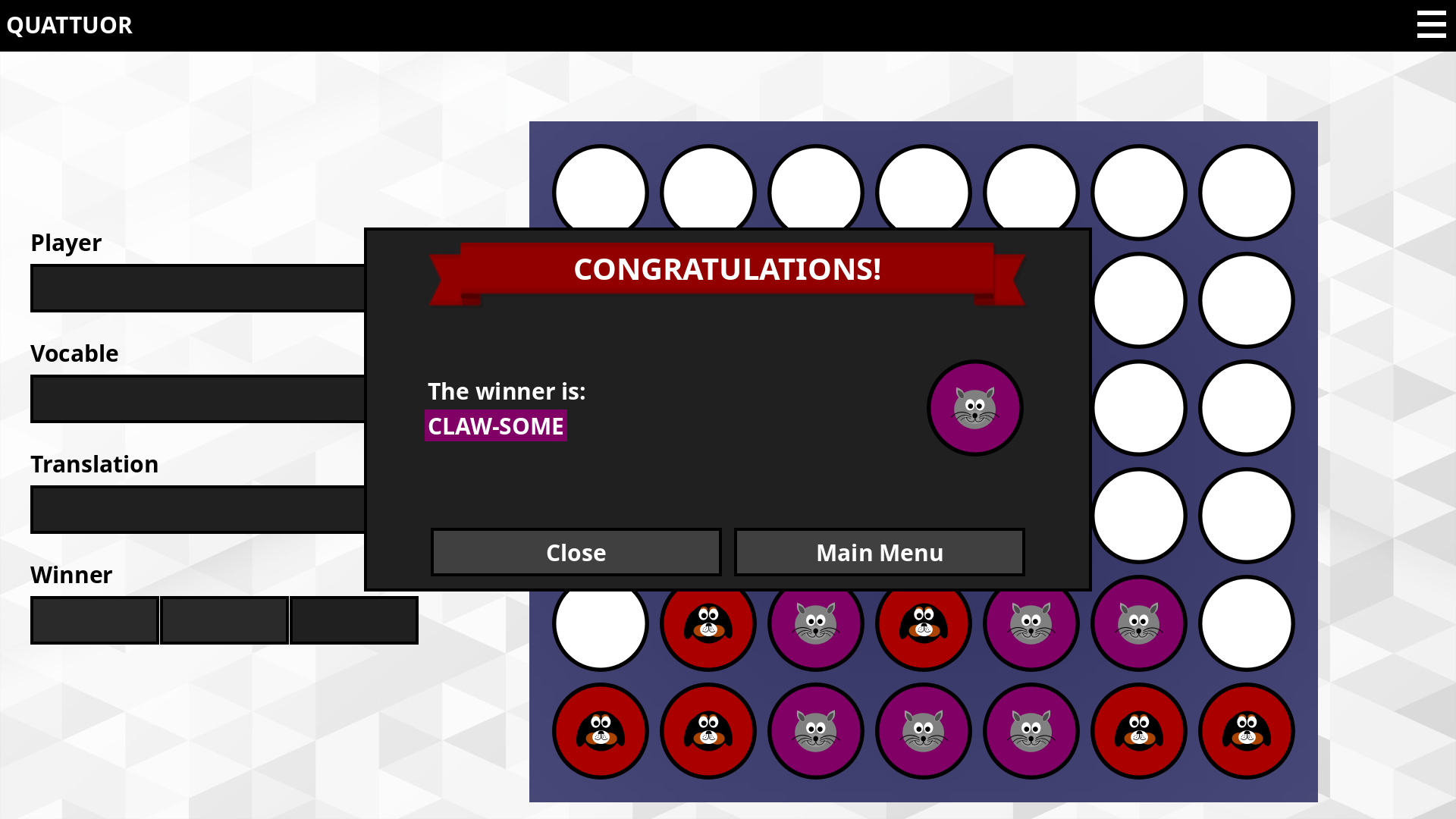
The objective of the game is to be the first to form a horizontal, vertical or diagonal line of four tokens of the own color.
The game control is on the left side of the window. There are buttons for the player number, the vocable to be guessed and its correct translation. The buttons must be clicked one after the other.
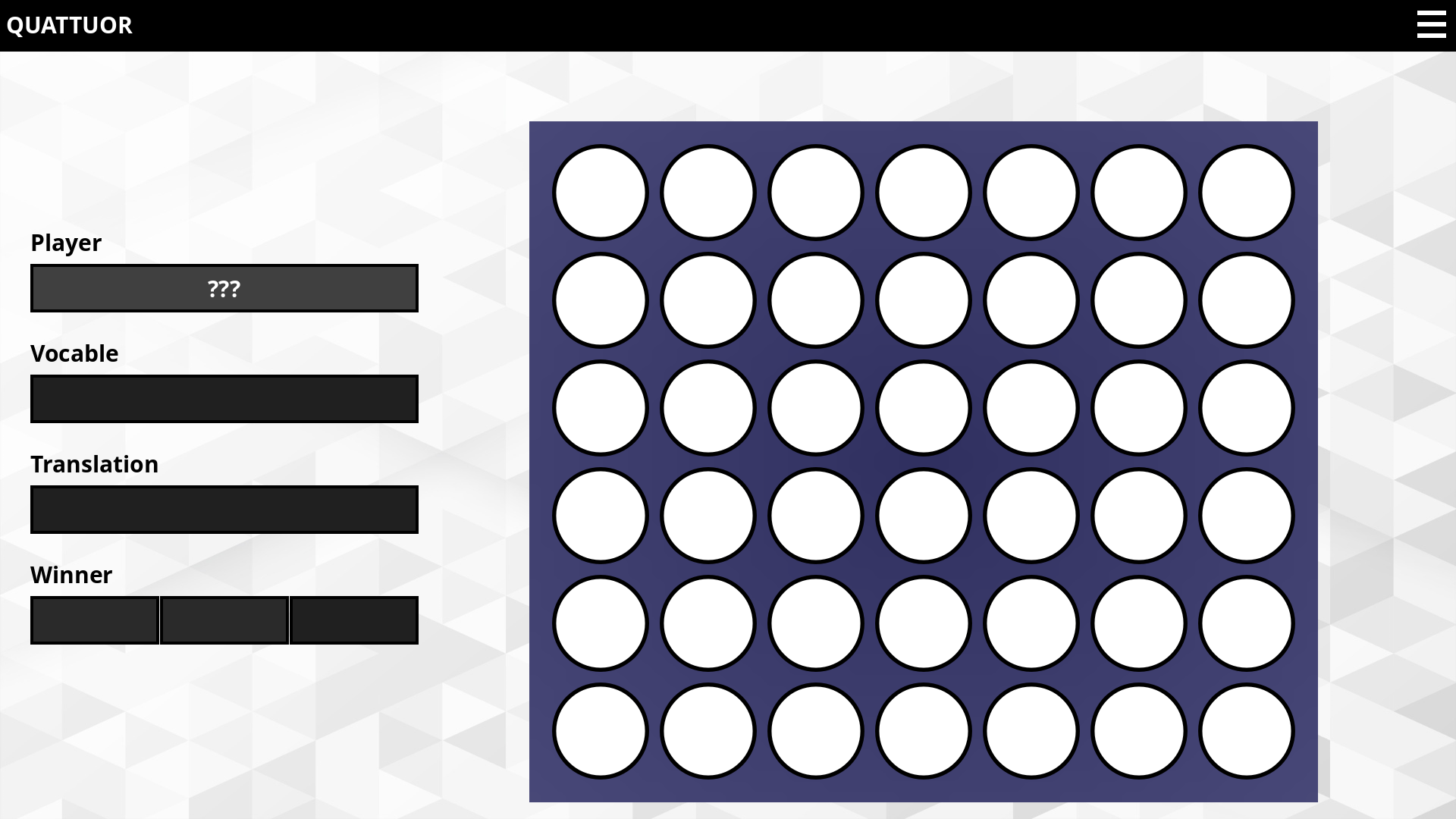
If the first team won this round, click on the left button (A), if the second team won this round, click on the middle button (B). If there is no winner, because both teams did not know the vocable or translated it incorrectly, click on the right button (X). The team who guessed the word can drop one token into the game board. Simply click on the arrow to choose the position.
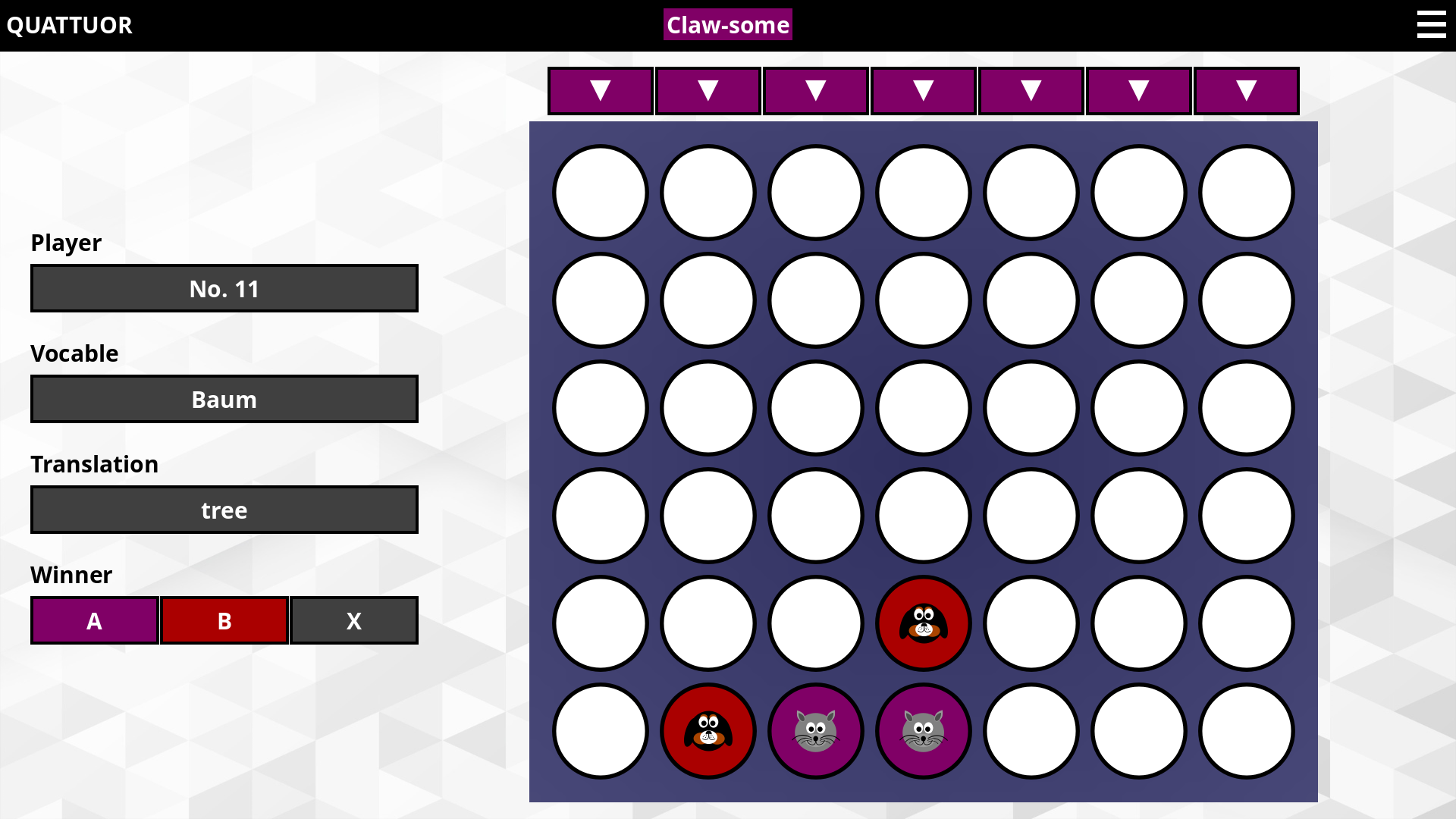
If one team won the game, a victory message will appear on the screen.